
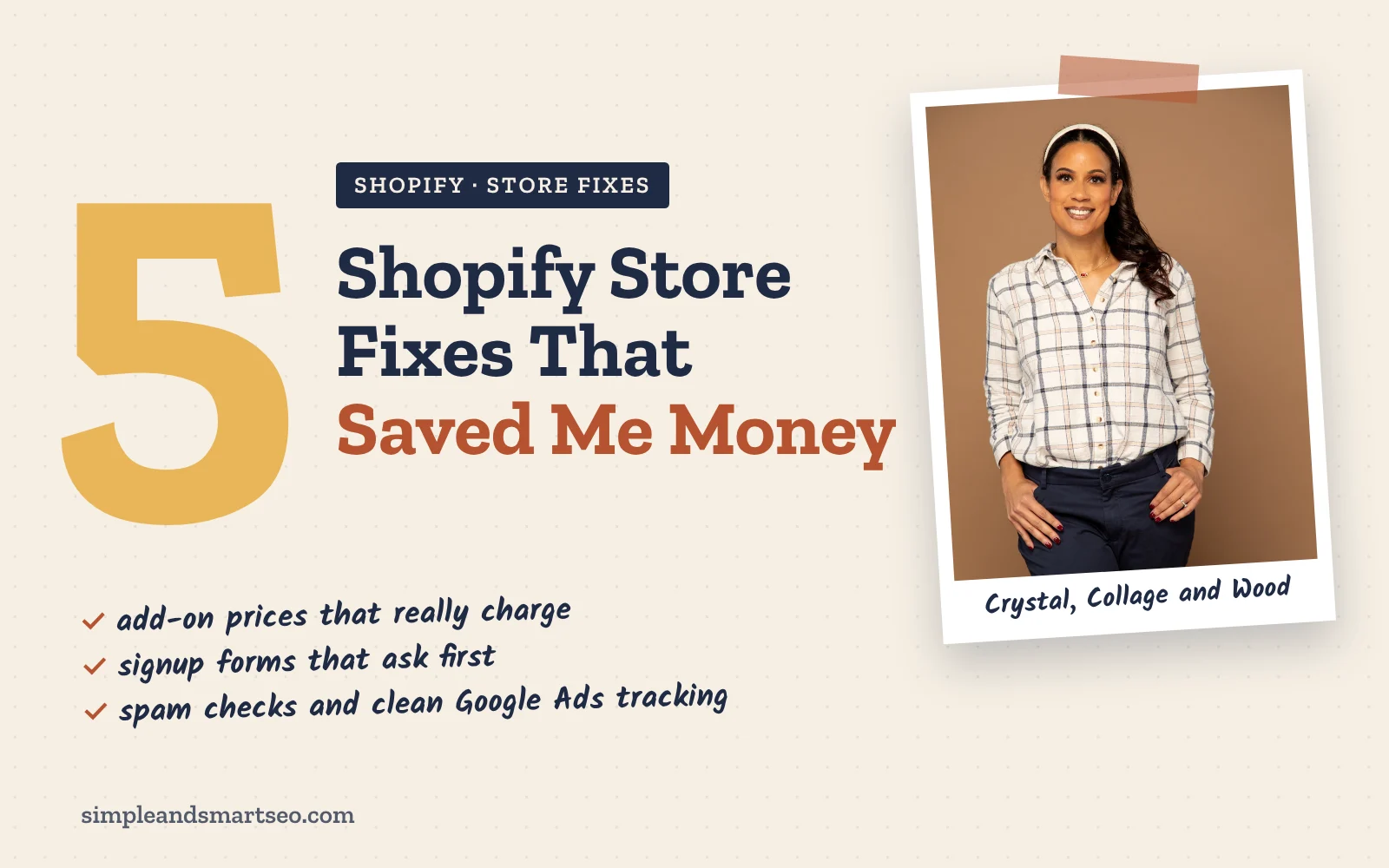
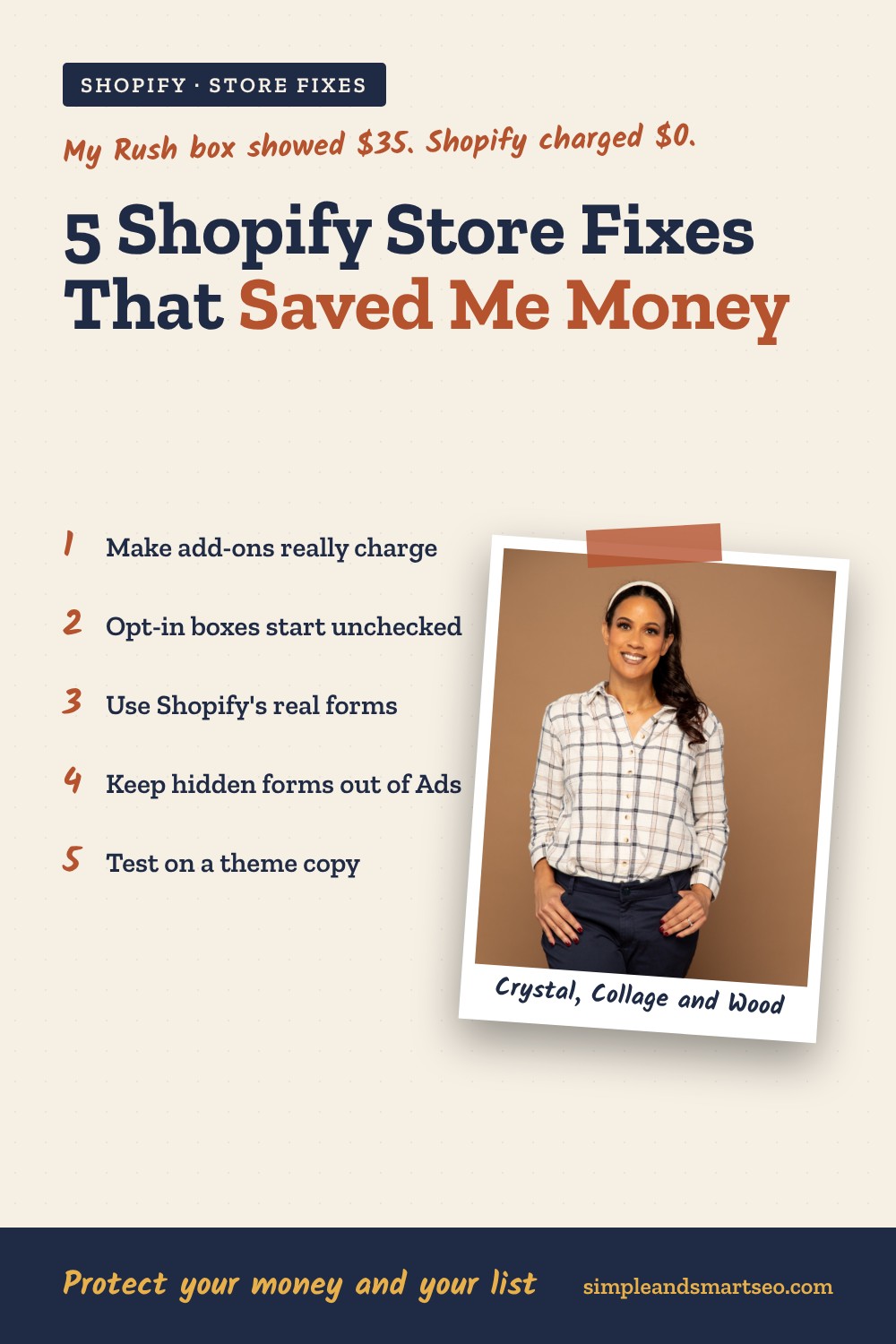
My Rush checkbox showed a $35 fee that Shopify never charged. Here are 5 Shopify fixes for add-on prices, signup forms, spam checks and Google Ads tracking.
My Rush checkbox was showing customers a $35 fee, and Shopify wasn't charging a penny of it.
I found that out while fixing the photo collage builders on my own store, Collage and Wood. One little bug led to another, and by the end I had five lessons that apply to any Shopify store with a custom product page, a signup box or a contact form.
If you've ever added a checkbox, an upsell or a "get updates" box to your store, this post is for you. None of these fixes need you to be a coder. You just need to know what to look for.
1. If you show an add-on price, make sure Shopify actually charges it
On my collage product page, checking the Rush box added $35 to the total right there on the page. The order even saved a note that said "Rush production: Yes."
But at checkout, Shopify only charged for the collage. A note on an order is just a note. It doesn't add money to the cart. A couple of rush orders went through before I caught it, and that rush work was done for free.
The fix: I made Rush its own product (a $35 Rush Production product). Now when a customer checks the box, the Rush Production product goes into the cart as a second item, right next to the collage. I also set it up so I can swap that product in the theme editor without touching code.
How to test your store:
- Check the add-on box on your product page.
- Add the product to your cart.
- Open the cart and make sure the cart total matches the total the product page showed.
Check your past orders, too. Search your orders for the add-on note (mine was "Rush production: Yes"). Any order with the note but no matching add-on item was undercharged.
2. Shopify's signup form always adds people to your email list
Here's something I didn't know. When someone fills out Shopify's built-in signup form, Shopify creates a customer account and marks that customer as "accepts email marketing." Every time. There's no setting to save the email without subscribing the person.
That matters if you collect emails for other reasons, like sending a customer a link to upload photos. A shopper who only wanted help with an order shouldn't land on your sales list.
The fix: give shoppers a choice with an opt-in box that starts unchecked.
- Box checked: the email goes through Shopify's signup form. The shopper becomes a subscribed customer, and you can add tags (I tag mine "photo-upload" plus a reference code).
- Box unchecked: the email goes through Shopify's contact form instead. You get the details in your store inbox, and nobody is added to your email list.
One trade-off: only shoppers who check the box become Shopify customers, so only that group can get automated Shopify emails. Shoppers who leave the box unchecked get a personal follow-up from you.
3. Shopify now spam-checks your contact and signup forms
Shopify now runs a hidden spam check (called a CAPTCHA) on its contact and signup forms. If your theme has custom code that sends form details quietly in the background, Shopify rejects it with a "Missing CAPTCHA token" error. Nothing gets sent, and you never find out.
That's exactly what happened with my email box. It looked like it worked, but no emails were arriving.
What fixed it on collageandwood.com:
- Use Shopify's real forms on the page (the contact form and the signup form). They can be hidden. Shopify only adds its spam check to its own forms.
- Send each hidden form into a hidden frame on the page, so the shopper never gets bounced to a new page.
- "Wake up" the spam check. Shopify only loads the spam check after someone interacts with a form. So when a shopper clicks or types in your visible email box, the code also nudges the hidden form's email box.
- Fill in the hidden form and submit it the way a real person would, so Shopify has time to attach its spam check first. (Developer note: use
requestSubmit(), not plainsubmit().) - Test it with a real email address, then check your store's contact inbox (Settings > Store contact email) to make sure the message arrived.
Why the inbox test matters: the page can't tell you whether the hidden form worked, because Shopify blocks its pages from loading inside a frame. Checking your inbox is the only way to know for sure.
4. Hidden forms can make your Google Ads results look better than they are
Every time one of those hidden forms sends, Google Analytics and Google Ads count it as a form submission (the event is called form_submit). The form's ID comes along with it, like cw-email-contact-form.
If your Google Ads account counts form submissions as conversions, these background signups will puff up your numbers. You might think an ad is working when it isn't.
The fix: leave that form's ID out of your Google Ads conversion. Or give your hidden forms a clear, easy-to-spot ID so you can filter them out of your reports.
5. How I made these fixes without breaking my live store
I made every one of these fixes with Claude, an AI assistant, connected to my Shopify store. If you're nervous about breaking your website, these habits will help, whether you work with AI, a developer or on your own.
- Work on a copy of your theme. Claude can't change my live theme. Claude makes a numbered copy (like v126), edits it and tests it. Then I publish the copy myself in Online Store > Themes with one click.
- Find every page that uses the same file. My collage builders share one file, so one fix covered every collage product page. Before you call a bug fixed, check which product templates use that file.
- Test the real thing, not a pretend version. Add the product to the cart and look at the cart. For emails, send one real test and check the inbox. A pretend test passed with flying colors while the real email never arrived. That's how I caught the spam check problem.
- Browser hiccup to know about: a password manager extension in Chrome can freeze things after an email box is filled in. Opening a fresh tab gets around it.
Your quick store checklist
Grab a cup of coffee and run through this list on your own store:
- Every add-on price on a product page adds a real item to the cart
- The cart total matches the product page total
- Past orders with add-on notes also have the add-on item
- Your email boxes only subscribe shoppers who check an opt-in box
- A real test email from each form lands in your store inbox
- Hidden form submissions are left out of your Google Ads conversions
- Theme changes happen on a copy, tested before you publish
When I coached volleyball, I didn't wait for a big game to find the holes in our serve receive. I found them in practice. Your store works the same way: test the boring stuff now, before a customer finds the gap for you.
Want a second set of eyes on your Shopify store? Book a free 20-minute discovery call and we'll talk through it.