
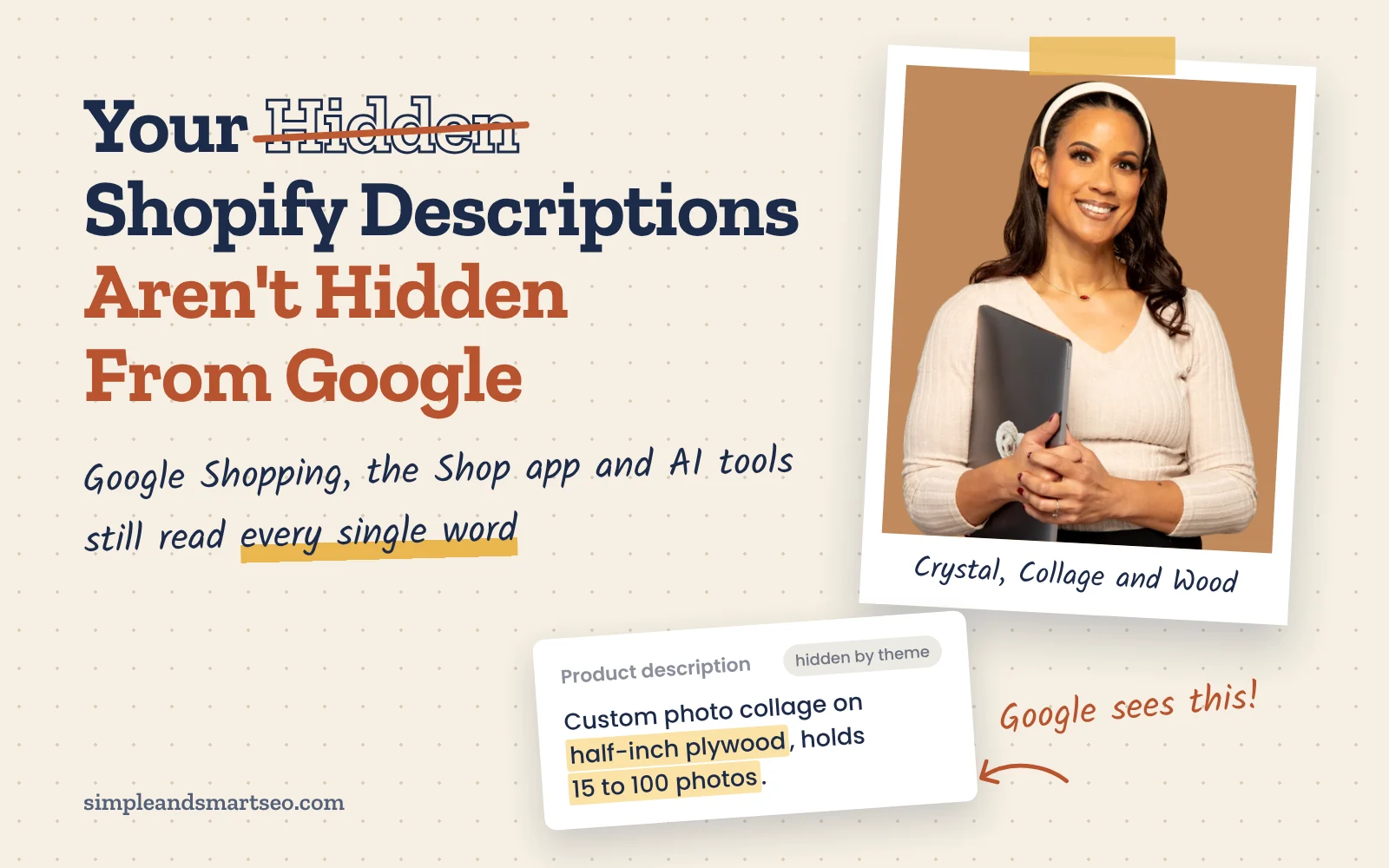
Your theme may hide product descriptions, but Google Shopping and AI tools still read them. Here's how to make your product facts match everywhere.
One evening in November, I found a poster in my own Shopify store selling framed for $120 and as a digital file for up to $210. Backwards. The swapped prices were live, customers could buy at those prices, and I'd never have spotted the swap on the product page.
I found the swap because I was checking something most store owners skip: what Google and AI tools read about my products when nobody's looking at the page.
If your theme hides the product description, this post is for you. The description is hidden from your theme, not from your customers. Here's where the hidden description still shows up, the simple three-layer system I use to keep product facts right, and a 10-minute check you can do today.
Where shoppers still read your "hidden" description
A lot of custom Shopify themes don't show the product description on the page. That doesn't mean nobody reads the description. Your product data and description still go to:
- Google Shopping and free listings: title, description, price, material, size and color.
- Meta shops on Facebook and Instagram: title, description and price.
- The Shop app: title, description and images.
- Your store's own search: store search matches words in your descriptions.
- ChatGPT, Google's AI Overviews and Perplexity: AI tools read your description and often quote the description word for word.
So if your description says "real wood" and your product is plywood, an AI answer will tell a shopper "real wood." If your product data is blank, Google gets nothing to work with. Getting discovered is step one. Getting understood is what gets you recommended.
The three layers
Every product fact lives in three places. When all three say the same thing, Google and AI tools trust the fact. When the three layers disagree, shoppers get mixed messages.
| Layer | What it is | Who reads it |
|---|---|---|
| 1. Store Profile | One Google Sheet with every confirmed fact: materials, sizes, prices, timing, policies | You, and anyone who writes your copy |
| 2. Product data | Shopify metafields and Google fields, short values like "plywood" or "15-100 photos" | Filters, smart collections, Google Shopping |
| 3. Descriptions | The same facts in plain sentences | Google, Meta, the Shop app, AI tools |
The one rule that makes the three layers work: Store Profile first, every time. When a fact changes, update the sheet, then the product data, then the description. A fact fixed in only one place drifts back.
Want the full walkthrough of layer 2? Read Shopify Product Data for AI Agents.
What one evening of checking found in my store
I run Collage and Wood, a Shopify store for senior night gifts and wooden photo collages. Here's what lining up the three layers turned up in one evening:
- 12 posters told Google they were digital only. The posters are sold framed too, so Google got no material for the framed version. Fixed: "semi-gloss paper and wood frame" went into the Store Profile, then into Google's material field.
- Photo counts on about 40 collages were wrong. Fixed from the Store Profile, one range per product.
- One poster had its prices swapped. Framed was $120, the digital file up to $210. Fixed to match every other poster.
- A deleted size was still listed on Google at the old price, with old description text. Archived in Google Merchant Center.
None of these problems showed up on my product pages. All of these problems showed up to Google.
A 10-minute check you can do today
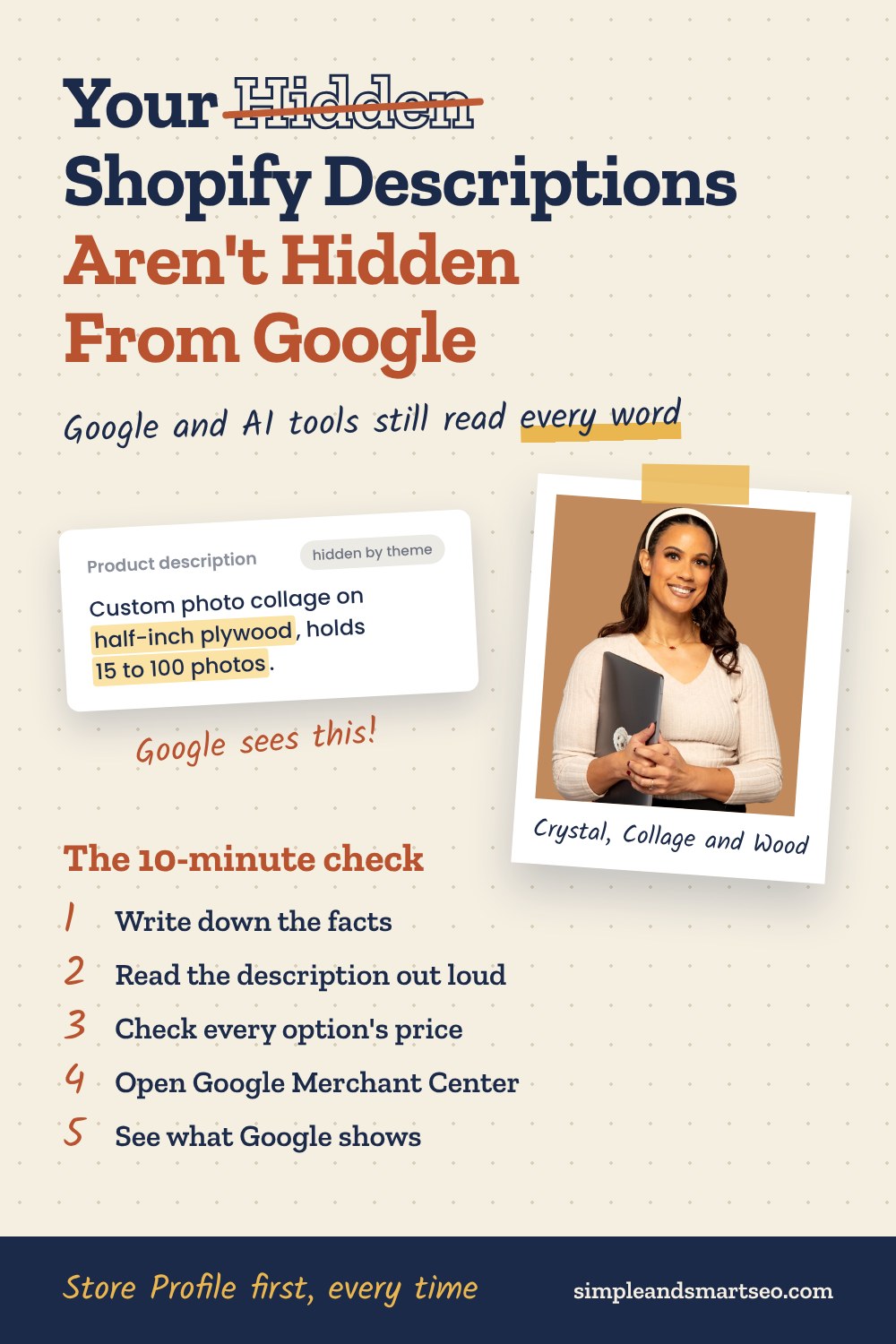
Pick your best-selling product and do this:
- Write down the product's facts. Material, sizes, price for each option, how long the product takes to make and ship. This list is the start of your Store Profile.
- Read the description out loud. Does every fact match what you just wrote, word for word?
- Check every option's price in Shopify. Is anything backwards or out of line with similar products?
- Open Google Merchant Center and go to Products, then Needs attention. Fix or archive anything flagged for that product.
- Look at what Google shows for the product's material, size and color. Blank means Google is guessing.
Found something off? Fix the fact in your notes first, then in Shopify, then in the description. Then do the next product.
The full checklist (and the Claude skill) are inside AI SEO Skool
Checking one product by hand is a great start. Checking a whole collection every month is where Claude helps.
Inside AI SEO Skool, you'll get the complete Three Layers Checklist, including:
- The before-you-start list, so you have everything ready
- All 15 steps, from building your Store Profile to logging every change
- The copy-and-paste Claude prompts for each check
- The gotchas, like a deleted size that still shows on Google
You'll also get the Three Layers Claude skill and the full lesson. Connect your Shopify store to Claude, say "run the three layers check on my best collection," and Claude compares your facts, your product data and your descriptions, shows you every mismatch in a preview, and changes nothing until you approve. The three layers check is the same check that caught my backwards poster prices.
And you won't be doing this alone. We work through this kind of project together on our weekly live calls, so if you get stuck, you've got people to help.
Want to do it yourself, with help? Join AI SEO Skool and grab the checklist. Memberships start at $25 a month.
Rather have someone do it for you? Book a free 20-minute call, and we'll talk through whether you want my team to line up your product facts for you.