
Turn a plain Shopify FAQ page into an on-brand page with real photos, video and FAQ structured data, working side by side with Claude. No coding needed.
Most Shopify FAQ pages look the same: a long wall of gray text that nobody reads until something goes wrong. Mine looked like that too, with a few random headings thrown in to break it up.
But your Shopify FAQ page is one of the hardest-working pages in your store. Shoppers check it right before they buy. Google reads it. And AI shopping tools like ChatGPT read it when they decide whether to recommend your store.
So I gave the Collage and Wood FAQ page a makeover, working side by side with Claude. Claude wrote the code. I made the decisions. Here's what that looked like, and how you can do the same thing on your own store in about 2 to 3 hours the first time.
What a Shopify FAQ page makeover gets you
This isn't just a prettier Shopify FAQ page. By the end, you have:
- A Shopify FAQ page that looks like your brand, with your colors, your fonts, real photos of you and your products, and a short behind-the-scenes video.
- Answers that match your store policies, so the FAQ never promises a timeline your policy doesn't.
- A page Google can read as questions and answers, thanks to FAQ structured data (a little code that labels each question and answer for search engines).
- A log of every change, so in a month you can see whether the new Shopify FAQ page actually helped.
You don't need to code. If you have a Shopify store, a few brand or product photos, and a Shopify connection in Claude, you're ready.
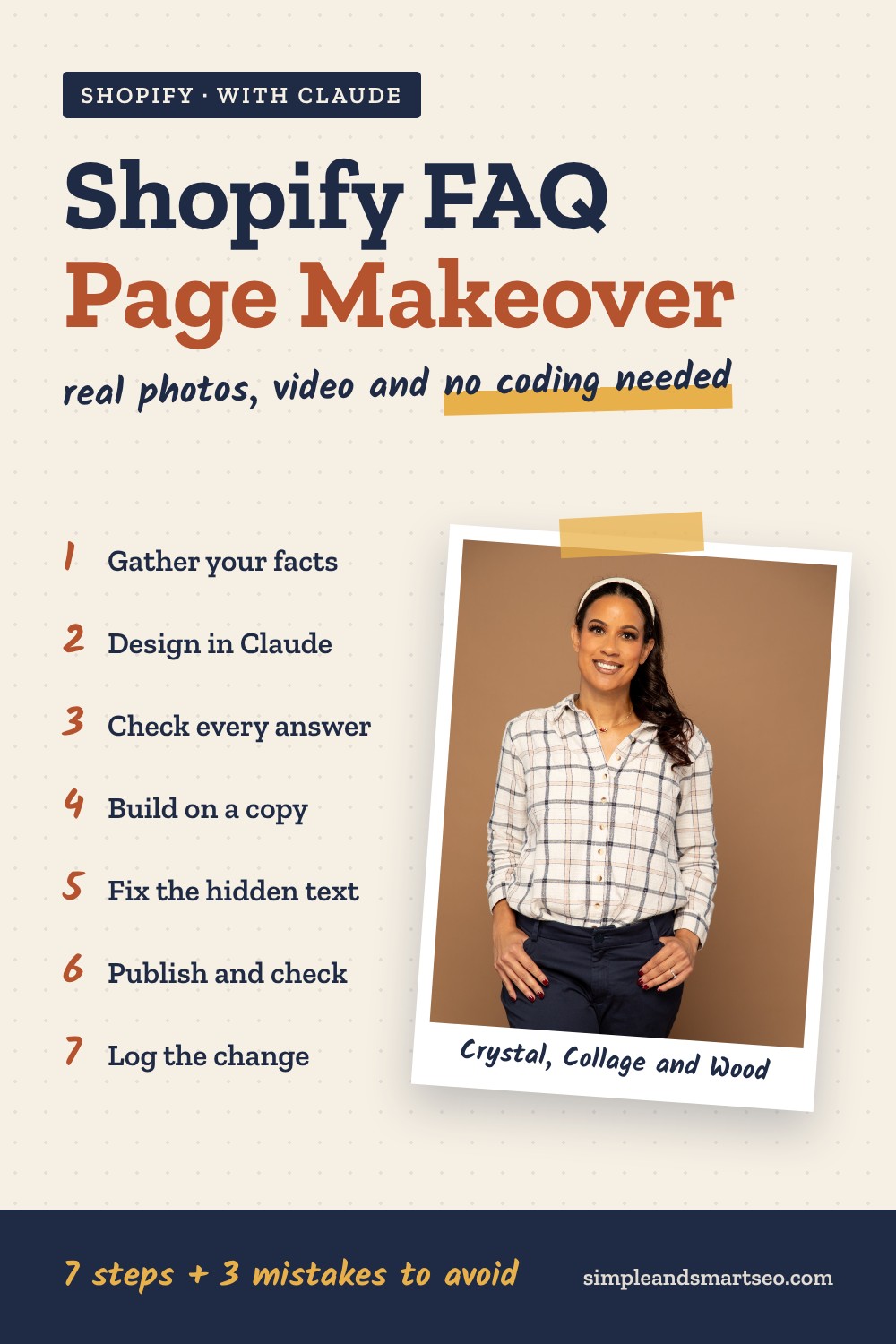
The 7 steps of a Shopify FAQ page makeover
The full checklist has every box to tick and the exact prompts I gave Claude. Here's the big picture.
- Gather your source of truth, brand and media. Before you open Claude, pull together your current store facts, your brand colors and fonts, and your photos and video. That way every answer and every color comes from you, not from a guess.
- Design the new page in Claude and review it. Get the look right in a design preview first, where changes are fast and nothing touches your store. This is the fun part. Answers that are really numbers turn into visuals, like a countdown timeline for order deadlines. And a surprised-face photo next to "What if my package is lost?" makes shoppers smile.
- Check every fact against your source of truth. Old Shopify FAQ pages are full of outdated numbers. A beautiful page with a wrong answer costs you orders and trust.
- Build it on a copy of your Shopify theme. Your live store stays untouched until you choose to publish, and you can still edit every word, photo and button later without code.
- Clean up the hidden Content box and add FAQ structured data. This is the step most store owners miss. Your new design can hide the old text, but apps, AI shopping tools and Google can still read that old text.
- Publish and check it live. A few quick checks keep you from undoing someone else's work and make sure Google sees every question.
- Log the change and set a follow-up. Logging is how you'll know in about a month whether the new Shopify FAQ page helped.
3 Shopify FAQ page mistakes to avoid
These are the ones that cost store owners the most.
- Answering from memory. Your Shopify FAQ page ends up promising a timeline your policy doesn't. Point Claude to your source of truth every time.
- Publishing an older theme copy. If someone else (or another Claude chat) made a newer copy, their recent work can disappear. Always check which theme is live first.
- Changing an answer on the page only. Google and AI shopping tools keep reading the old answer. When an answer changes on the page, change the hidden copy too.
The full checklist covers the rest, including why a long autoplay video can slow your page down.
Get the full Shopify FAQ Page Makeover Checklist
The complete Shopify FAQ Page Makeover Checklist lives inside AI SEO Skool. As an AISEOSkool.com member, you get:
- Every step and checkbox, so you don't skip anything
- 5 copy-and-paste prompts to give Claude, from design to fact check to publishing
- The full list of common mistakes and how to fix each one
- Weekly live calls where you can work on your Shopify FAQ page with me and ask questions as you go
You don't have to figure it out alone, and you don't have to get it perfect the first time. You just have to start.
Want to do it yourself, with help? Join AI SEO Skool and grab the checklist.
Rather have someone do it for you? Book a free 20-minute call and leave with your next fix done.